
Here is how to use Google Flights in one breath: enter your airports and rough dates, open the Dates view to see which days are cheap, add every airport you would realistically fly from or into, filter out the itineraries you would never book, switch on Track prices for anything you are not ready to buy, and then book on the airline’s own page after reading the fare rules.
That sequence takes about ten minutes and it is the one I follow for every trip I plan, from a long weekend in Miami to a two-airline trip across the Atlantic.
Google Flights is a search engine, not a seller. It pulls fares and schedules from airlines and booking sites, lays them out fast, and hands you off to whoever sells the ticket. That one fact explains most of the confusion people have about it, and I will keep coming back to it.
What follows is the practical version of how to use Google Flights: what each button does, which ones I ignore, what the date grid and price graph can and cannot tell you, how flexible airports work, how price tracking and the “low, typical, high” labels are built, where Flight Deals fits, and the mistakes that cost people real money.
Quick facts: how to use Google Flights at a glance
- What it is: a free flight search tool at google.com/travel/flights. It shows airline and booking-site fares, but you pay the seller, not Google.
- Best for: comparing dates, airports and routes quickly; setting price alerts; spotting a fare that is unusually low for the route.
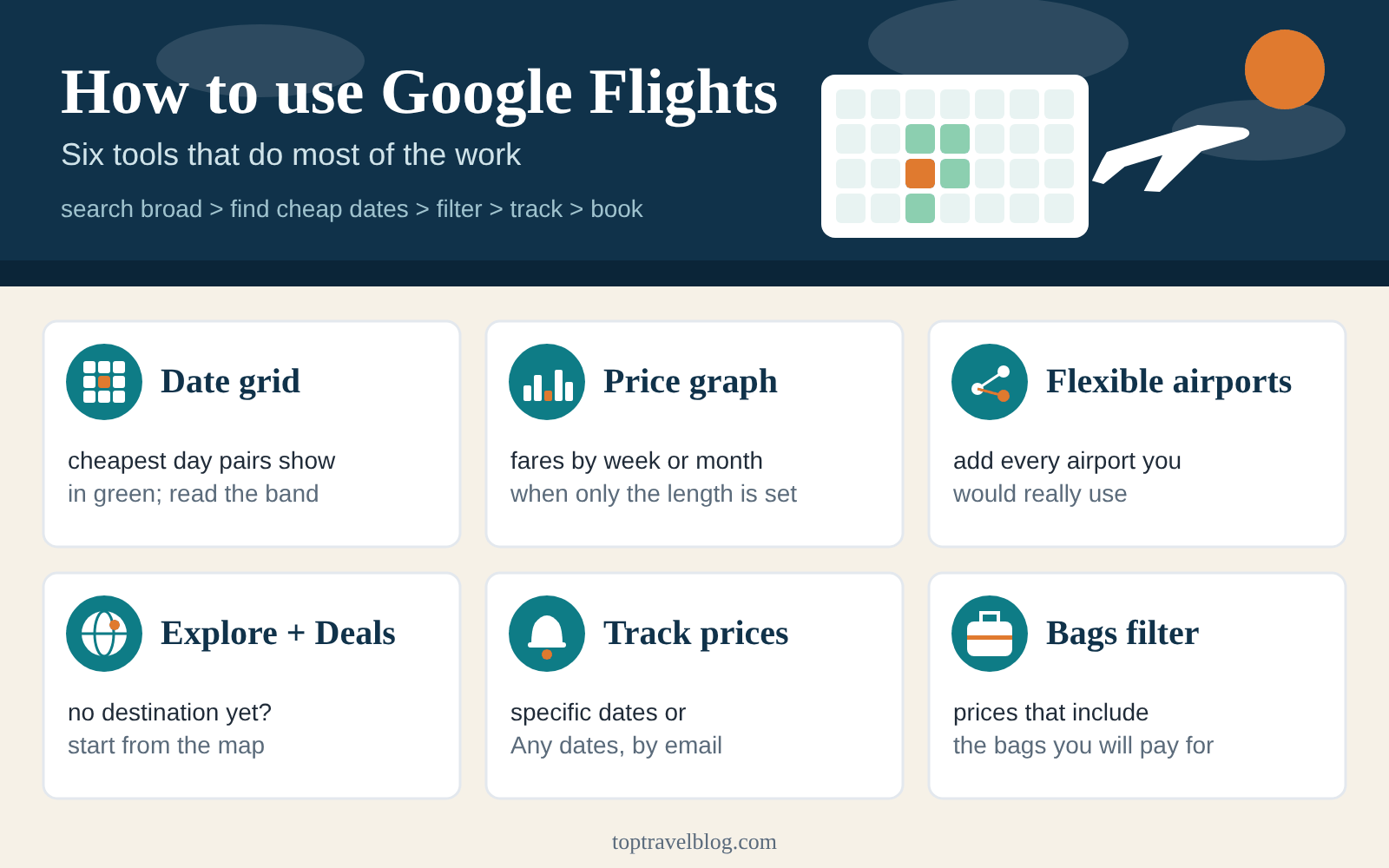
- Core tools: the Dates view (date grid), the Price graph, multi-airport search, Explore, Flight Deals, the Bags filter, and Track prices.
- Time needed: ten minutes for a first search, then a few seconds a week to check tracked routes.
- Biggest trap: the headline price usually excludes bag fees and seat selection, and the cheapest fare may be Basic Economy.
- What it does not do: sell tickets, guarantee a price will fall, or protect a self-made connection on two separate tickets.
How to use Google Flights: the first search, step by step
If you have never opened it, the page looks almost too plain: four boxes across the top and a list of flights underneath. Everything useful hides in a handful of controls, and the order you use them in matters more than any single trick when you learn how to use Google Flights.
I will walk through a real search the way I do it, then spend the rest of this guide on the tools that make the difference.

Step 1
Set the trip type, passengers and cabin first
Before you type an airport, look at the three small menus to the left of the origin box. They set the trip type (round trip, one way or multi-city), the number of passengers and the cabin class. Fares change with all three, so set them first and you will not have to redo anything.
For a normal vacation I leave it on round trip, economy, and that is where most people who ask me how to use Google Flights should start. For a one-way fare on a trip where you will come home another way, switch to one way or use multi-city. I come back to multi-city later because it is one of the most underused features on the page.
Passenger count matters more than people expect. A fare shown for one traveler may not exist in the quantity you need, and Google will show you the price for the whole group once you enter it. Enter everyone, children and infants included, before you judge a price.
Step 2
Enter airports, not just cities
Type a city and Google offers both the city and the individual airports. Picking the city name (for example “New York” or “Washington”) searches every major airport in the area at once. Picking an airport code searches only that airport. The box also lets you add more than one origin or destination, which is how you build a flexible-airport search.
Google’s help center says nearby airports are included by default for major cities and that you can add more origin or destination airports to compare fares. Read my section on flexible airports below before you decide which ones to add, because “nearby” on a map and “nearby” for a family with luggage are different things.
Step 3
Pick dates the fast way
Click the date box and a calendar opens. Google’s own description is that the calendar shows the lowest total price for each day, which is useful as a first glance. You do not have to commit to dates here. You can click through to the Dates tab or the Price graph instead, and I cover both properly in the next sections.
If your dates are fixed (a wedding, a school break), pick them and move on to the results. If they are not, do not pick dates at all yet. Use the calendar as a map.
Step 4
Read the results page in the right order
Once you know how to use Google Flights, the first results page reads quickly. You get a list headed by two tabs, Best and Cheapest, and a row of filter buttons. The default ordering is “Top flights,” which Google says weighs duration, number of stops and airport changes on layovers, not price alone.
This is the part of how to use Google Flights that trips people up: I look at the Cheapest tab second, never first. The cheapest itinerary is often a 14-hour routing with a long overnight connection, and it is not the fare most people want to buy. The Best tab usually shows the sensible version of the same trip for a little more.
The filters run along the top: stops, airlines, bags, price, times, emissions, connecting airports and duration. I use stops and bags on almost every search, times when I have a hard arrival deadline, and connecting airports when a hub I dislike keeps showing up. The detail on each is further down.
Step 5
Open an itinerary and read the whole thing
Click an itinerary and it expands. Read the layover cities and durations, the aircraft, the cabin, and the line under the price that shows which fare type you are looking at. This is where you learn that a “cheap” ticket is Basic Economy, that the connection is 55 minutes in a large airport, or that the second leg is on a different carrier.
If you are choosing between two similar itineraries, this expanded view is where the decision gets made, not the list.
Tip: The page shows prices in the currency and for the region set at the bottom of the page. If you search from abroad, or a trip starts in another country, fares can look different under a different location setting. Google keeps a help article on customizing currency, language and location for exactly this reason; start there if a fare looks odd.
How to use Google Flights results: Best, Cheapest and the labels in between
Once you have a results page, the real skill is reading it. These are the pieces I pay attention to and the pieces I ignore.
Best versus Cheapest: how to use Google Flights tabs together
The Best tab is not the same as “Top flights” in marketing terms. It is Google’s blend of price, duration and convenience. On a simple nonstop route the two tabs often show the same flight at the top. On a long-haul or a route with no nonstop, they can differ by several hundred dollars and several hours.
My rule when I show someone how to use Google Flights is to find the cheapest sensible itinerary and then ask what the next-best costs. If the cheapest has a nine-hour layover and the Best option is $60 more, I almost always take the $60. Time is the one thing you cannot get back with a refund.
The low, typical and high price labels, explained
Google has long labeled a search result as low, typical or high compared with past prices for the same route. Google’s own blog describes it as comparing current prices for your search with past averages for the same route. The company does not publish the exact thresholds, so treat the label as a rough read of “is this a good price for this route and these dates,” not a verdict.
The part that is genuinely useful is the price history chart that sits under the results on many searches. It shows how fares for your route have moved, which lets you see whether a price is a short spike or a stable level. I trust it more on busy routes with lots of data (New York to Los Angeles, Chicago to Orlando) than on thin routes where one odd fare can bend the picture.
Tips, predictions and what they really mean
Google’s help center explains that the Tips section can flag good deals. “Prices are less than usual” appears when a trip costs much less than similar past trips. Tips can also say prices are unlikely to drop, or likely to rise by an estimated amount. Google is clear that these predictions come from past price trends and are not guaranteed.
That wording is worth taking seriously. A tip that prices are unlikely to drop is not a promise that they will rise, and a “less than usual” flag on a flight that still does not fit your schedule is not a deal for you. In practice, how to use Google Flights tips well means treating them as a tiebreaker, not as the decision.
The cheapest time to book
For many searches Google also shows when, historically, the lowest fares for similar trips were available. In the company’s announcement the example insight is that the cheapest time to book similar trips is usually about two months before departure. The feature only appears for searches with enough reliable trend data, so on a thin route you will see nothing, and that is normal.
For the broader picture of when to book and how to avoid the traps around it, I keep the longer strategy in how to find cheap flights. This guide stays on the tool itself, and on how to use Google Flights well rather than on booking theory.
Prices exclude things you will probably pay for
The number next to a flight is the fare for a seat. It does not include a checked bag, usually does not include a carry-on on the lowest fares, and does not include seat selection. Google’s help center says displayed prices exclude extra fees such as baggage, which vary by airline. That is why the Bags filter exists, and why my answer to how to use Google Flights always includes turning it on early.
Watch out: The bag-fee numbers Google shows when you use the filter are estimates, and Google notes they may also carry government taxes. Treat them as a good approximation and read the airline’s baggage page for the final figure.
How to use Google Flights date grids and the price graph
If I could keep only two tools, they would be these, and they are the core of how to use Google Flights on any flexible trip. Both answer the question that matters most on a flexible trip: which days should I fly?
The date grid, and how to use Google Flights to read it
Open a search, click the date box, and choose Dates (or the Date grid option, depending on your layout). You get a grid with departure dates down one side and return dates across the other. Each square holds the lowest fare for that exact pair of dates, and the cheaper squares are highlighted in green.
Google’s help center puts it simply: clicking Dates shows which travel dates have the best fares, and prices often change by day of the week. That last point is the one to act on. On most routes a Tuesday or Wednesday departure and a Tuesday, Wednesday or Saturday return will sit in cheaper squares than a Friday-to-Sunday pattern.
The trick to how to use Google Flights grids well is to read them in diagonals. Pick a cheap square, then look at the squares one day to either side. If the neighbors cost $90 more, the cheap one is a narrow pocket, and one schedule change can wipe it out. If a whole band of squares is cheap, you have room to choose the dates that suit you.
What the grid will not tell you about a fare
The grid shows the lowest fare for each date pair, and that fare might be on an itinerary you would never choose: Basic Economy, two stops, or an overnight layover. Always click the cheap square and look at what it is before you get excited.
The grid also shows total prices for the number of passengers you entered, so a square that looks pricey may simply be the whole family’s fare. And it only covers a window of dates, so a cheap fortnight outside that window will not appear unless you scroll.
Tip: Use the grid to find a pattern, not a single winner. “Mid-week departures in the second half of September are cheap on this route” is a durable finding. “March 12 to March 19 is $41 cheaper” is a coin flip that may be gone tomorrow.
The price graph
The Price graph tab turns the same data into a bar chart of the cheapest fare by departure date, for a trip of the length you choose. Google describes it as showing fare trends by month or week when your travel is flexible, and says you can also opt in to tracking from there.
I use the graph when I know the trip length but not the month, which is the second half of how to use Google Flights for flexible planning. Set the length (say five nights), open the graph, and scan for the dips. A seasonal pattern shows up at once: the school-vacation weeks tower over the shoulder weeks.
The graph is also the quickest way to see how much a date shift is worth. If shifting your departure by three days saves a few hundred dollars for a family, that is a real decision. If the savings are $12, it is not worth a vacation day.
Grid versus graph: how to use Google Flights tools in order
I start with the grid when I have a window and two or three plausible trip lengths, and with the graph when I have a trip length and a season. If I have neither, I go to Explore, which I cover below. If you want a deeper strategy for choosing travel days and booking windows, the logic is laid out in how to find cheap flights; here I only show you where the buttons are.
A worked example, with made-up numbers
Say you want a week in Las Vegas in the fall and your dates are loose. You search your home airport to Las Vegas, open the grid for the second half of October, and see one band of cheap squares for Tuesday departures and Tuesday returns, and a pricier band for Friday departures.
You click the cheapest square and discover it is Basic Economy with no carry-on on the return. You turn on the Bags filter, and the price changes. The square one day later, on a regular economy fare, is now the cheapest honest option.
That sequence (grid, click, read, filter) is how to use Google Flights on a flexible trip, and it works on every route I have tried. The grid proposes; the itinerary page and the Bags filter decide. If the destination is Nevada, the trip itself is laid out in my Las Vegas itinerary.
How to use Google Flights with flexible airports
The cheapest flight to a region is often not at the airport you thought of first. Searching more than one airport is the single easiest way to find it, and it is a core part of how to use Google Flights well, since the tool does it better than most.
How multi-airport search works in Google Flights
Click the origin or destination box and add more than one airport. You can type codes (JFK, EWR, LGA) or pick the city name to include the whole metro area. Google then searches every combination and merges the results into one list, with the airport shown for each itinerary. This is the feature that surprises people most when they first learn how to use Google Flights.
Google’s help center also notes that the Airports section of the results flags when fares are cheaper at other airports and shows what those fares are. If you see that note, click it before anything else. It is the same idea with the work done for you.
When a farther airport is worth it when you use Google Flights
I use a simple test whenever I explain how to use Google Flights with several airports. Take the price difference, then subtract the real cost of getting to the farther airport: a rideshare or parking, plus your time. If the difference does not cover that with room to spare, stay close.
For a family of four the math often favors the farther airport, because the fare saving is multiplied by four while the ground cost is shared. For a solo traveler with a 5 a.m. flight, it rarely does.
Here are the metro areas where I most often see a worthwhile spread, and what to weigh in each.
New York: JFK, LaGuardia, Newark
Best for: East Coast and transatlantic searches
Three major airports in one metro. Newark often undercuts on some routes and is easiest from New Jersey and parts of Midtown by rail; JFK is the main long-haul airport; LaGuardia is domestic. Compare all three, then price the transfer. The city side of the trip is in my New York City itinerary.
Los Angeles: LAX, Burbank, Long Beach, Orange County, Ontario
Best for: domestic flights and trips outside the beach zone
LAX is the default, but Burbank, Long Beach, John Wayne (Santa Ana) and Ontario can be cheaper or much easier. Where you sleep decides it, which I cover in my Los Angeles itinerary.
South Florida: Miami and Fort Lauderdale
Best for: Miami and Keys trips
Fort Lauderdale-Hollywood and Miami International are roughly 30 miles apart by road. Low-cost carriers lean toward Fort Lauderdale, so add both. See my Miami itinerary for how to plan around either.
Central Florida: Orlando and Sanford
Best for: theme park trips
Orlando International is the main gateway; Orlando Sanford is farther north and used by some leisure carriers. The trade-off is a long ride to the parks, which I discuss in my Orlando vacation guide.
Washington, D.C.: DCA, IAD, BWI
Best for: trips around the capital
Three airports with different strengths: Reagan National is closest to downtown, Dulles is the long-haul option, Baltimore/Washington often has the lowest fares. Compare, then add the transit time.
San Francisco Bay: SFO, Oakland, San Jose
Best for: Northern California
SFO is the big hub; Oakland and San Jose can undercut it and may be closer to where you are staying.
The ground-cost trap that catches careful planners
A cheap fare into the wrong airport can cost more than it saves. A $70 saving evaporates if the airport is 50 miles from your hotel and the only sensible option is a $120 rideshare. Before you commit to an unfamiliar airport, look at how you will actually get to your lodging at your arrival time. A late arrival at an airport with limited overnight transit changes the math entirely.
Open-jaw trips: fly into one airport, out of another
Knowing how to use Google Flights for open-jaw trips pays off, because multi-airport search shines there: arrive in one city, leave from another, and skip the backtrack. Choose multi-city or add different airports for the origin and destination of the return leg.
A trip that starts in Los Angeles and ends in Las Vegas, or in New York and out of Boston, is often priced as a pair of one-ways. Sometimes it costs about the same as a round trip; sometimes it is cheaper. You only find out by pricing it.
Choosing connecting airports
Under the Connecting airports filter you can include or exclude the hubs your itinerary passes through. I use it to avoid airports with a bad record of weather delays in the season I am flying, and to block connections I would not trust with a tight layover.
If you are unsure what counts as a safe connection, read the guide to minimum connection time at airports and the longer discussion of international layover time. Both explain why a layover that looks fine on a screen can fail in real life.
How to use Google Flights Explore and Flight Deals when you have no destination
Sometimes the honest starting point is “I have a week in March and a budget, and I do not care where.” Two tools handle that, and both belong in any answer to how to use Google Flights without a destination: the Explore map and the newer AI-driven Flight Deals.
The Explore map: how to use Google Flights for inspiration
Google describes Explore as a way to browse for deals around the world on a map. You enter your home airport, leave the destination blank, and you see prices on a map with filters for budget, trip length and flight duration.
I use it in a specific way, and it is the most fun part of how to use Google Flights. First I set the filters that are real constraints: a maximum flight time, a rough trip length, a month. Then I scan the map for surprises, cities I would not have typed in on my own. Then I stop and check whether the cheap fare is the kind I would actually buy (nonstop or one short connection, a sensible cabin).
Explore is best for inspiration and bad for precision. The prices on the map are the lowest Google has seen for that destination in your window, and the dates behind a price might be a Tuesday-to-Tuesday pair that does not suit you. Click through and look at the real itinerary.
Flight Deals, and where it fits in how to use Google Flights
Flight Deals launched in August 2025 as a beta in the United States, Canada and India, and Google describes it as an AI-powered search tool inside Google Flights for flexible travelers who mainly want to save money. You describe a trip in everyday language (a destination, dates, or an idea such as a weekend beach escape) and it suggests matching places and dates using fares from more than 300 partners.
The tool sorts results into two kinds. Google’s help center defines Savings Deals as flights priced at least 20 percent below the typical fare for a similar trip, with a “percent less than usual” badge and the typical price crossed out. The typical price is based on the median of the cheapest fares on that route over the past 12 months, adjusted for time of year, trip length and cabin class. Cheap Flights are among the lowest fares for your search but are not necessarily below typical, and carry no badge.
If you open Flight Deals without typing anything, Google shows week-long trips from your location to popular destinations over the next six months.
What Flight Deals cannot do yet
Google lists limits, and they matter. Flight Deals does not support multi-city trips, specific passenger types such as infants, groups larger than four, or specific layover requests. It also warns that the AI’s suggestions may not always match your intent, and that prices change often, so a deal depends on availability and the price can change at booking.
My honest view of how to use Google Flights alongside Flight Deals: it is a good idea generator and a poor planner. I use it when I have no idea where to go, and I switch back to the standard search the moment I have two or three candidate places.
Using Explore and Deals together in Google Flights
A workflow I like when I am working out how to use Google Flights for an open-ended trip: Explore to see the map, Flight Deals to describe the kind of trip (“a warm week in February, direct flight under five hours”), and then a normal search with the date grid on the two cities that look best. The normal search is where you see the details that decide a booking: the exact itinerary, the fare type, the bag rules.
If the larger question is how to build the whole trip from a blank page, how to plan a trip covers the order I follow, and it starts well before you open a flight tool.
The Google Flights filters I actually use (and the ones I skip)
Filters are where a good search becomes a good ticket, so how to use Google Flights filters deserves its own section. There are many, but a handful earn their place.
Stops
Set stops to nonstop only, one stop or fewer, or any. In my own approach to how to use Google Flights, I start with “1 stop or fewer,” because it removes the worst routings and keeps most of the cheap fares. If a nonstop exists and costs a reasonable premium, I take it. If you have a small child or a hard deadline, nonstop only is worth the extra.
Airlines and alliances
You can include or exclude individual airlines and alliances. I use this two ways: to see only the airline where I hold miles or a status, and to remove an airline I would not fly again. Southwest fares have appeared on Google Flights since 2024 under a pilot arrangement, so a search for domestic routes now includes an airline that used to be missing from the page.
Bags
Turn the Bags filter on and the displayed prices update to include the bag fees you say you will pay. Google’s help center states that turning the filter on should not remove any flights from the results. It changes the price shown, not the list.
Choose carry-on or checked based on what you will really bring. Google also points out that when the fare does not include overhead-bin access, checking a bag can cost less than paying to carry one on. On a Basic Economy ticket that can reorder the whole list.
Times
Departure and arrival windows are useful when you have a real deadline: a hotel check-in cutoff, a ferry, a conference. Use them lightly. Narrow time windows hide good itineraries, and I have found my best fare on the 6 a.m. departure I would have filtered out.
Duration and connecting airports
The duration slider caps total travel time. It is a blunt instrument but effective at killing the 22-hour routings that appear on the Cheapest tab. Connecting airports lets you exclude hubs, as covered earlier.
Emissions
Google estimates emissions for each flight and lets you filter for lower-emissions options. I treat the number as a tiebreaker between two otherwise equal itineraries. Google keeps separate help articles on how emissions are checked and estimated if you want the method.
Basic Economy: how to use Google Flights to avoid the surprise
Google added an option in 2025 to exclude Basic Economy fares for trips in the United States and Canada. If you know you will need a carry-on, seat selection or the ability to change, turning it on removes fares that would have looked cheap and then cost you extra. The trade-offs between the two fare types are laid out in Basic Economy vs Main Cabin, and if you are weighing a bigger upgrade, premium economy vs economy covers when that is worth paying for.
Tip: Keep the filter panel open while you search. Each filter you add narrows the cheapest fare, and the moment the price jumps sharply you have found the filter that actually costs money. That tells you what your preference is worth.
The filters I skip
I rarely touch the sort-by-departure-time option, the price slider (the sort order already does the job) or the emissions filter as a first pass. They are fine, just not where the money is.
How to use Google Flights price tracking without wasting it
Price tracking is the feature that turns Google Flights from a search page into a patient assistant, and it is the part of how to use Google Flights that rewards patience. It is also the most misunderstood, because people expect it to predict the future. It does not. It tells you when something changes.
Turning tracking on: how to use Google Flights alerts step by step
Google’s help center lays out the process. Go to Google Flights, choose the number of stops, cabin class and number of tickets, then choose your airports. Turn on Track prices for the route. You can track the dates you searched or select Any dates if your travel is flexible. To track a specific flight, select the flight and turn on Track prices.
You need to be signed in to a Google account. Google also notes that Any dates tracking is aimed at flexible travel: you get an email when the route’s lowest price drops significantly over a month, and if the drop is not large enough you get a regular email listing the best available prices.
What the emails say
There are two kinds. The first is the price-drop email for a tracked route or flight. The second, according to Google, is an insight email: it tells you when a tracked route’s prices are likely to rise, or when a fare you are looking at is about to expire and the replacement is likely to cost more. These emails include an estimate of the increase and a confidence level.
I read the confidence level. A “low confidence” estimate is Google saying it does not know, and I do not rush on that basis.
Where to find and manage your tracked flights
If you only learn one corner of how to use Google Flights, learn this page. Everything lives on one page, the Tracked flights page at google.com/travel/flights/saves. From there you can open a saved route to see its tracked flights, use the notification icon to switch emails on or off, or remove a route or flight.
I do a quick review every couple of weeks and remove anything stale, because good habits in how to use Google Flights include pruning. A dozen forgotten alerts for trips you already took is how people stop reading the emails.
Specific dates or Any dates
This choice matters more than it looks.
- Specific dates suit a fixed trip: a wedding, a conference, a school break. The alert tells you when your exact itinerary moves.
- Any dates suit a flexible trip. Google emails about cheap fares over roughly the next three to six months, which gives you a window rather than a day.
I use Any dates early in the planning stage, then switch to specific dates once the trip is real.
How I decide when to buy a tracked fare
Knowing how to use Google Flights tracking only helps if you have a rule for acting. Mine is simple. Set a number in advance based on what a good fare looked like in your price history. If the tracked fare reaches it, buy. If an insight email says the fare is likely to rise and the price is already acceptable, buy. If the price is mediocre, wait.
I also buy when a fare matches my plan even if it is not a record, because chasing the absolute bottom of a price graph is how people end up paying more. There is no prize for the lowest fare, only for flying.
Watch out: Tracking does not hold a seat or a price. A fare can disappear between the email and your click. When an alert arrives and the fare is one you want, act the same day.
Tracking a flight you have already booked
Google’s blog notes that power users can track a selected itinerary with a refundable fare. The idea is to rebook if the price falls. That only works if your fare is refundable or changeable without a big penalty, and you should read the cancellation terms before canceling anything. The rules differ by airline and fare type, and the U.S. rule on refunds within 24 hours is covered in the 24-hour flight cancellation rule. The wider refund picture is in airline refund rules.
The price guarantee badge
Google announced a pilot program in which some results carry a badge saying Google is especially confident the fare will not drop before departure, and refunds the difference through Google Pay if it does. The company described it as a pilot for select itineraries booked on Google departing from the United States. Because it is limited, I treat it as a nice surprise when it appears and never as a reason to book.
How to use Google Flights to book: what happens when you click Select
Part of knowing how to use Google Flights is knowing that it is not where you pay. When you choose your flights and click Select, Google sends you to the airline or an online travel agency to complete the booking. Google’s help center describes it exactly that way, and adds that you should contact the airline or agency to confirm, change or cancel the booking afterward.
That hand-off is where most of the avoidable mistakes happen, so slow down here; this is the least glamorous part of how to use Google Flights and the most expensive to get wrong.
Airline or booking site: how I choose after a Google Flights search
When the same fare is offered by the airline and by an online travel agency, I book with the airline. The price is usually identical or within a few dollars, and the benefits are real: you deal with one company when something goes wrong, your frequent-flyer number and seat selection are straightforward, and a schedule change reaches you first.
An agency can make sense when it is clearly cheaper by a meaningful amount, and when you have read its change and refund terms. If a problem does arrive, you may find yourself bouncing between the agency and the airline, each pointing at the other. For a simple domestic trip I pay the airline. For a complicated international trip, I insist on it.
Read the fare before you pay
On the airline’s page, before you enter a card, find three things: the fare name (Basic, Main, Flex), what it includes (carry-on, checked bag, seat selection, changes), and the total with taxes. If the fare on the airline’s page is different from the one you clicked on Google Flights, stop and work out why. The usual answer is that the cheapest fare on Google was Basic Economy and the airline’s page opens on a higher fare family.
The differences between those fare families are covered in Basic Economy vs Main Cabin. Read it once, and you will recognize a bad deal in seconds.
Separate tickets and self-transfers
Google can show itineraries built from separate tickets, sometimes called self-transfer. Its help center warns that separate or self-transfer tickets may require you to collect and drop off your bags again, and can carry extra change fees per ticket.
The risk is simple. On a single ticket, if your first flight is late and you miss the connection, the airline rebooks you. On two separate tickets, the second airline owes you nothing, and you can lose the whole second fare. I treat self-transfers as acceptable only when the connection is generous (many hours, preferably an overnight), the first flight is not on a thin schedule, and I am carrying only hand luggage.
If you want the full explanation of what happens when a connection fails, read what happens if you miss a connecting flight. It applies the protection of a single ticket in concrete terms.
Watch out: A cheap itinerary built from two separate tickets is the one that most often turns into an expensive day. If a connection is shorter than a comfortable meal, do not self-transfer it.
Multi-city and open-jaw bookings in Google Flights
Choose Multi-city to build trips with several legs: fly out of one city, between two others, and home from a third. Google lets you add each leg and price the whole itinerary at once. It is the right tool for round-the-world routes, for a business trip that ends with a vacation, and for any open-jaw plan.
Multi-city does not support everything. Flight Deals, for example, does not handle multi-city trips, so you build those in the standard search.
What to do after you book
Take a screenshot of the itinerary page, save the confirmation email, and add the airline’s confirmation code to your calendar entry. If you booked through an agency, find the airline’s own record locator in the confirmation as well, so you can manage the trip on the airline’s site.
Then keep tracking the route if your fare is refundable and the price might fall. If your plans change within the first day, the 24-hour rule may help; the details and the exceptions are in the 24-hour flight cancellation rule, and the U.S. Department of Transportation explains passenger rights on its aviation consumer protection pages.
How to use Google Flights like a regular: seven habits that save money
These are the habits about how to use Google Flights that I have settled on after years of booking my own trips and helping friends with theirs. None of them is a hack. They are just the order of operations.
1. Search broad, then narrow
Start with a flexible window and all the airports you would accept; it is the first rule of how to use Google Flights without regret. Narrow only after you have seen the real range. People who start narrow never discover that a day earlier saves $150.
2. Look at the grid before the list
The date grid shows you the shape of the price landscape. The list shows you one point in it. Read the shape first.
3. Turn on the Bags filter on day one
A fare without the bags you will pay for is a fiction. Switch the filter on at the beginning so every price you see is closer to the real one.
4. Compare nonstop to one-stop
Check the premium for the nonstop. If it is small, take it. If it is large, look at the one-stop options with a connection you would trust. This one comparison saves more money than any other single habit.
5. Add every airport you would actually use
If you would drive 45 minutes to a second airport for a clear saving, add it. If you would not, do not. Searching airports you would never use only clutters the page.
6. Track what you are not ready to buy
If the fare is fine, buy. If it is not, track it. Do not keep re-running the same search every day; that is what the alerts are for.
7. Book with the airline and read the fare
Click Select, land on the airline’s page, and read the fare family and the total. Pay there. This protects you more than any discount.
Tip: If you can only remember one of these rules for how to use Google Flights, remember the order: grid, airports, bags, tracking. It takes about ten minutes the first time and under five once it is habit.
How to use Google Flights for long-haul and international trips
Everything I have said about how to use Google Flights works for international flights, but the stakes and the traps are different. A mistake on a $150 domestic hop costs an afternoon. A mistake on a transatlantic itinerary can cost a night in an airport and a second fare.
Search from the right place when you use Google Flights abroad
Set your region and currency deliberately. If you are planning from the United States, leave the settings on the U.S. and dollars so the totals match what you will actually be charged. If you are comparing a fare that originates abroad, change the currency to see it in a familiar form, and remember that your card may add a foreign-transaction fee that Google cannot see.
Compare nonstop and one-stop with the clock in mind
On a long-haul route the nonstop premium can be large, and a one-stop itinerary can be perfectly reasonable if the connection is sensible. The filters do the work: cap total duration, choose one stop, and then read the layover durations. A connection of two to four hours in a well-organized hub is a different experience from a 55-minute connection that requires a terminal change and passport control.
For the reasoning behind those numbers, how long a layover you need for an international flight is the guide I send friends. It explains why an international connection needs more time than a domestic one.
Check who operates each leg of the itinerary
Open the itinerary and look at the airline on each leg. Some itineraries are sold by one airline and operated by a partner, and a few are built from two unrelated airlines. That affects baggage rules, how the airline rebooks you if something fails, and whether your miles earn. Neither is bad; it is just information you want before paying.
Read the baggage rules on the airline’s page
Long-haul fares often include a checked bag; the lowest fares may not. Turn on the Bags filter with a checked bag, and compare. When a Basic fare costs the same as a Main fare once the bag is included, take the Main fare and the extra flexibility.
Think about the cabin early
On a flight over seven or eight hours, the cabin is part of the plan. Use the cabin menu to price premium economy next to economy, and look at what the difference buys. Premium economy vs economy explains when the upgrade is worth the money and when it is not.
Allow for things Google cannot show
The search will not tell you about entry requirements, visa rules, passport validity or transit visas. Those are the traveler’s job, and the official government sites are the place for them. The price of a ticket you cannot use is not a saving.
A ten-minute routine for how to use Google Flights on any trip
When I plan a trip, this is the routine, and it is the shortest honest answer to how to use Google Flights. It works for a weekend in Chicago and for two weeks in Portugal.
- Minutes 1 to 2: set trip type, passengers and cabin. Enter every sensible origin and destination airport.
- Minutes 3 to 4: open the Dates grid or the Price graph. Find the band of cheap days. Write down two or three candidate date pairs.
- Minutes 5 to 6: click each candidate. Read the fare family, the layover and the airline. Turn on the Bags filter.
- Minutes 7 to 8: set stops, remove any airline or hub you would not fly, and compare the Best and Cheapest tabs.
- Minutes 9 to 10: buy if the fare meets your number. If it does not, switch on Track prices and go and plan the rest of the trip.
That is the whole method of how to use Google Flights in practice. The rest of this guide is detail on each step.
Using the routine with other people
If a group is traveling, run the search once for everyone and share the link. The page URL carries your search, so you can paste it into a chat and everyone sees the same results. The decision then becomes a conversation about preferences, not about whether you looked at the same flight.
Keeping notes so you can tell a real deal from a hunch
I keep a short note for each trip with the date pair I chose, the price at the time, the fare family and the reason. If a tracked alert arrives a month later, the note tells me whether the new fare really beats the old one. It sounds fussy and it prevents bad rebookings.
How to use Google Flights in six real situations
The tools make more sense when you see how to use Google Flights applied. These scenarios use invented numbers for illustration, but the logic is exactly what I do.
Scenario 1: how to use Google Flights for a long weekend with fixed dates
Your dates are set: a Thursday-to-Monday trip to Miami for a friend’s wedding. There is nothing to shop on the calendar, so the work is in airports, stops and tracking.
Add Miami and Fort Lauderdale as destinations. Set stops to one or fewer, turn on the Bags filter for one carry-on, and compare.
If Fort Lauderdale is cheaper by a clear margin and your hotel is on the north side, take it. Then switch on Track prices for those dates and set a number you would happily pay. If it is reached, you buy; if it is not, you go back to booking about two months out, the example Google has cited for similar trips. The Florida side of the trip is in my Miami itinerary.
Scenario 2: how to use Google Flights with flexible dates
You have a week free some time between mid-September and early November and a destination in mind. This is a date-grid job.
Search your airport to the destination, open the grid, and set a trip length of seven nights. Look for the band of cheap squares. Say it sits in the first half of October with Tuesday departures. Click the cheapest square, read what it is, and turn on the Bags filter. If it survives, you have a shortlist of three or four dates. Set Any dates tracking on the route and look at the price graph for a second opinion.
The decision is then made by something other than the airfare: weather, crowds and hotel prices for those dates.
Scenario 3: a family of four and a cheaper airport
Four people flying to Orlando for a theme-park week. Fares are multiplied by four, so a $60 gap becomes $240.
Add Orlando International and Orlando Sanford as destinations. Compare the fares, then price the ground transport honestly, because the ride from Sanford is longer. If the saving after ground costs is real and the arrival time is sensible, Sanford wins. If you land at 11 p.m. with tired kids, it does not. The day-by-day side of that trip is covered in my Orlando vacation guide.
Scenario 4: how to use Google Flights with no destination
You have a week in February and want somewhere warm. Open Explore, enter your home airport, set the month and a maximum flight time, and scan the map. Or open Flight Deals and describe the trip: a warm week in February, direct flight, relaxed.
Pick two or three destinations that look interesting, then run a normal search on each with the date grid. The point of Explore is to widen the list, not to book from the map. If one place has a Savings Deal badge, remember what the badge means: at least 20 percent below the typical fare for a similar trip, not a bargain on every date.
Scenario 5: a transatlantic trip with a connection
A transatlantic trip to Europe with a connection in a hub. Here the filters earn their keep.
Cap the layover duration so you do not accept an eleven-hour wait in a hub airport, set stops to one, and use the connecting airports filter to exclude hubs you dislike. Then open the itinerary and look at the layover time and whether the connection requires a terminal change. If you are close to the minimum, read minimum connection time at airports and international layover time before you buy.
If the cheapest option is two separate tickets, do the sums on what you risk. A saving of $120 is not worth a missed connection and a second full fare.
Scenario 6: you already booked and the price dropped
You bought a refundable fare and a month later you see the same itinerary for less. If your tracked flight sends a drop email, open it, compare the old fare to the new one, and read the cancellation terms on your ticket.
If the change fee is zero and the fare difference is real, rebook and cancel the old ticket. If the old ticket can only be cancelled for a credit, think about whether you will use the credit. The refund rules sit in airline refund rules, and I would read the 24-hour section first because the clean case is often the first day.
What Google Flights does not do (and where to look instead)
Google Flights is the first tool I open, but it is not the only one, and how to use Google Flights wisely includes knowing its limits.
It does not sell the ticket
This sounds obvious, yet it causes real trouble. The airline or agency you book through is your counterparty for changes, refunds and complaints. Google’s help center says to contact the airline or agency about a booking, and that is the whole truth of it.
Not every fare appears
Some airlines and fare types do not show up, and some fares sold only on an airline’s own site never reach the search. Southwest only joined Google Flights in 2024. For a route you fly often, spend two minutes comparing Google’s result against the airline’s own site. If they match, you can trust Google for that route.
Prices are snapshots
A fare on screen can sell out between your search and your click. Google’s help center for the Flight Deals tool says this directly: prices change often, so deals depend on availability, and the price may change at booking. The fix is not to worry but to move quickly once you have decided.
Predictions are not promises
The tips and the insight emails are statistical guidance based on past trends. They are useful and they are sometimes wrong. I have watched a “likely to rise” fare drop and an “unlikely to drop” fare drop within days.
It does not understand your preferences
Google’s ranking blends price, duration, stops and airport changes. It does not know that you hate a 6 a.m. departure, that you need a specific alliance for your points, or that you will not fly through a certain hub in winter. Filters are how you teach it.
Seats, upgrades and special requests
You can see cabin class and some seat information, but choosing a seat happens with the airline, and so do special meals, wheelchair assistance and unaccompanied-minor arrangements. If seat choice matters to you, use how to choose the best airplane seat before you reach the airline’s seat map.
Baggage after the flight
Google Flights helps you price bags. It cannot help when a bag goes missing. If that happens, delayed baggage and lost luggage explain the claim process and expenses.
How to use Google Flights: which tool for which situation
If you only remember one thing about how to use Google Flights, make it this: the right tool depends on what you already know about your trip. Start from the fact you are surest of, and let it pick the feature.
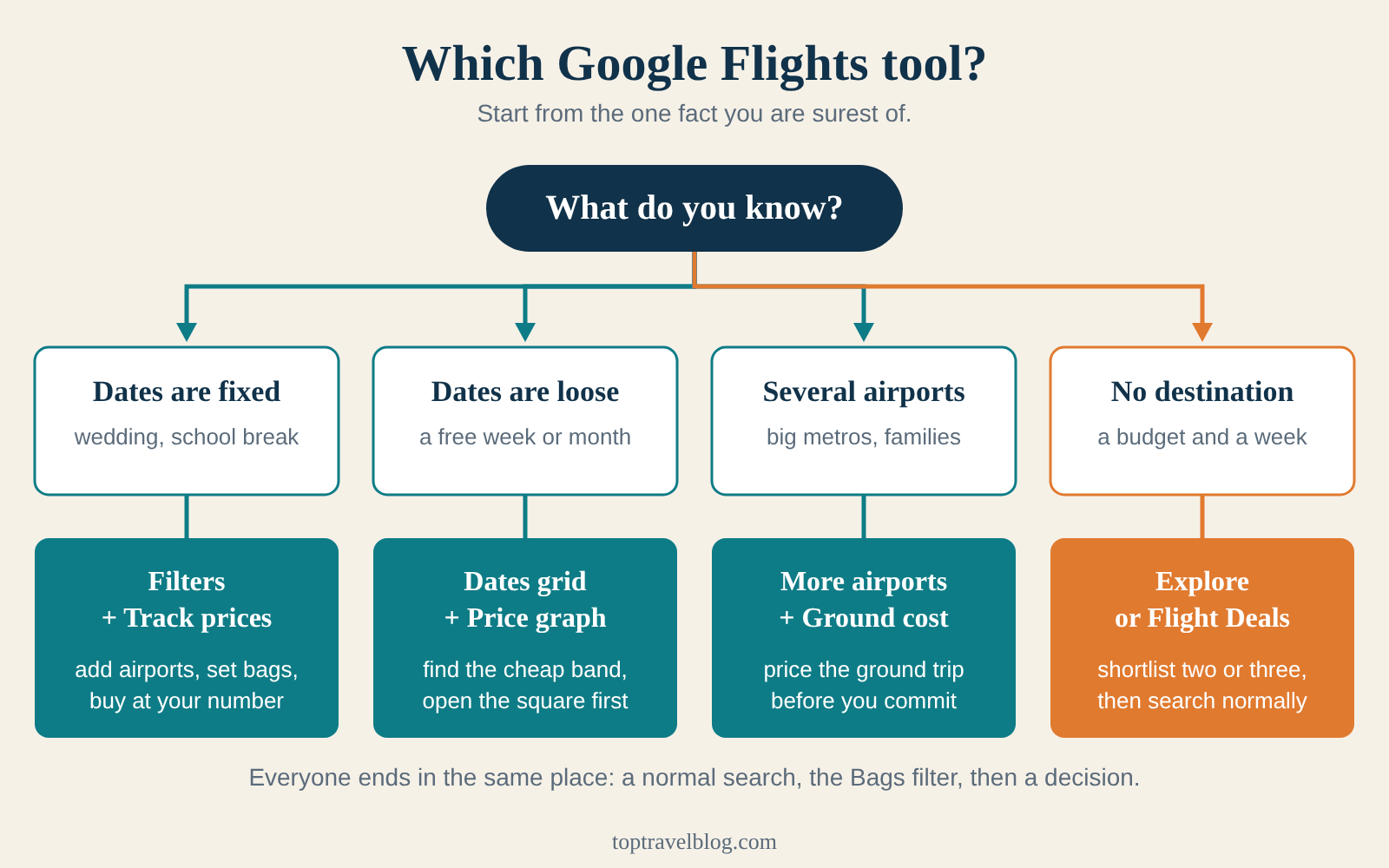
Your dates are fixed
Best for: weddings, school breaks, work trips
Skip the grid. Add every sensible airport, set stops and Bags, read the Best and Cheapest tabs, then turn on Track prices for your exact dates. Buy when the fare reaches your number.
Your dates are loose
Best for: leisure trips with a free week
Use the Dates grid and the Price graph. Set a trip length, find the band of cheap days, click the cheapest squares and read what they are. Then track with Any dates.
You have more than one airport option
Best for: big metro areas and families
Add airports to the origin or destination. Price the ground transport honestly. A cheaper fare to an inconvenient airport is not always a saving.
You have no destination
Best for: a free week and a budget
Start with Explore or Flight Deals, narrow to two or three places, then switch to the standard search to see real itineraries.
The same decision in plain language
When I help a friend work out how to use Google Flights, I ask three questions in this order. Are the dates fixed? Is there more than one airport on either end? Do you know where you are going? The answers pick the tool in about thirty seconds, which is really all that how to use Google Flights comes down to.
If the answer to the first is yes, I work on airports and filters. If it is no, I work on the grid. If the answer to the third is no, I begin with Explore. Everyone ends in the same place: a normal search with real itineraries, a Bags filter and a decision.
When to buy and when to wait
There is no formula, but there is a sensible approach. If the price label says low, the fare fits your schedule and you have read the fare rules, buy. If the label says typical and a tip says prices are likely to rise, buying is reasonable. If the label says high and the trip is months away, track it and wait.
On timing, how to use Google Flights comes down to lead time: the longer it is, the more room you have. The shorter it is, the less waiting helps. Within a few weeks of a peak holiday, waiting is rarely rewarded.
Tip: Write down the price you would be happy with before you start tracking. Without a number, every alert becomes a debate, and debates are how people end up paying more.
Judge the fare by the total cost, not the headline
The total cost of a flight is the fare, plus bags, plus seat selection, plus the ground transport at both ends, plus the cost of your time. A fare that wins on the first number can lose on the last four. The Bags filter handles one of these; the rest is your judgment.
If you are comparing cabins as well, premium economy vs economy explains when paying more is justified on a long flight.
Common mistakes when you use Google Flights
These come up again and again when people learn how to use Google Flights. They are in rough order of how much money or time they cost.
1. Booking the cheapest square without opening it
The cheapest cell in the grid is a fare, not a recommendation. Open it. If it is Basic Economy with a 12-hour overnight layover and no carry-on, the real price is higher and the trip is worse.
2. Ignoring bag fees until checkout
The headline fare excludes bags. Turn the filter on from the start, or you will compare the wrong numbers for an hour and then discover the difference at the airline’s page.
3. Trusting a prediction as a promise
Google says its predictions come from past trends and are not guaranteed. Use them as one input. I have seen both directions fail.
4. Searching too narrowly
Fixing a single date, a single airport and a nonstop-only filter on the first search is how you miss a $200 saving on the day before. Start wide, narrow later.
5. Searching too widely
The opposite error: adding airports you would never use and dates you cannot take. A wide search with wrong assumptions produces a lovely cheap fare you cannot buy.
6. Booking a self-transfer with a short connection
Two separate tickets mean two separate contracts. If the first flight is late, the second airline owes you nothing. Never self-transfer on a tight connection.
7. Forgetting the ground cost of a farther airport
A fare saving that is smaller than the taxi to the hotel is not a saving. Do the sum before you click.
8. Tracking too many things
Twenty tracked routes means twenty emails and no action. Track the trips you are seriously planning and remove the rest.
9. Buying through a third party for a small saving
A $10 difference is not worth the extra friction when your flight changes. For anything more complicated than a straightforward round trip, book with the airline.
10. Waiting for a fare you have already seen
If you saw a fare you were happy with and it is still available, buy it. Waiting for a lower one is how people end up paying more. A good fare you take beats a perfect fare you miss.
11. Leaving the location settings alone
If you search from a different country or want to see fares in another currency, the displayed price can differ. Set the region and currency on purpose.
Frequently asked questions about how to use Google Flights
Is Google Flights free to use?
Yes. Google Flights is free, and you do not need an account for most searches. You do need to be signed in to a Google account to turn on price tracking. Google earns money from the airlines and agencies it links to, but the fare you see is what the seller charges, so there is no extra fee from Google for using it.
Does Google Flights show the cheapest flights?
It shows a very wide range of fares, and the Cheapest tab sorts by price. It does not show everything: some airlines and fare types sell only on their own sites. For a route you fly often, compare Google’s result against the airline’s own site once, so you know whether the two agree.
How do I see the cheapest days to fly when I use Google Flights?
Open the date box and choose Dates to see the date grid, or open the Price graph tab to see fares by day or week across several months. The grid shows the lowest fare for each pair of departure and return dates, and cheaper squares are highlighted. Weekdays are usually cheaper than weekends on many routes.
How does Google Flights price tracking work?
Turn on Track prices for a route, for specific dates, or for Any dates. Google emails you when the price drops significantly, and sends insight emails when a fare is likely to rise. You manage everything at google.com/travel/flights/saves. You must be signed in to a Google account for tracking to work.
Are the “low”, “typical” and “high” labels reliable?
They compare the current price with past prices for the same route, and they are a decent first read. Google does not publish the thresholds, and a label does not account for your schedule or the fare type. Use it alongside the price history and the details of the itinerary, not as the whole decision.
Can I book directly when I use Google Flights?
For most itineraries you click Select and finish the booking on the airline’s or agency’s site. Google describes the process that way in its help center. After you book, contact the airline or agency to change or cancel. Google also pilots some in-product booking features, but you should assume that you are paying the airline.
Where does Flight Deals fit into how to use Google Flights?
Flight Deals lets you describe a trip in plain language and returns suggested destinations and dates. Savings Deals are at least 20 percent below the typical fare for a similar trip. It is a beta, covers the United States, Canada and India, and does not handle multi-city trips, infants, groups above four or specific layover requests.
Should I search nearby airports when I use Google Flights?
Usually yes, if you would genuinely use them. Add airports that are a reasonable trip from your door or hotel and compare the full cost, including ground transport. A farther airport is most worth it for a family, where the fare saving is multiplied, and least worth it for a late arrival or an early departure.
How do I avoid Basic Economy when I use Google Flights?
Use the option to exclude Basic Economy fares, which Google added in 2025 for trips in the United States and Canada. Also read the fare name on the itinerary page. If you need a carry-on, seat selection or changes, the difference between Basic and Main matters. The comparison is in Basic Economy vs Main Cabin.
What should I do if my flight is canceled after I book?
Contact the airline that sold the ticket, since that is who has your booking. Know what you are entitled to before you reach the front of the line, and keep your confirmation handy. The sequence I follow is in what to do when a flight is canceled or delayed.
One last thing before you search
You do not need all of this every time you sit down to learn how to use Google Flights properly. For a simple round trip on a route you know, the grid and the Bags filter will do most of the work. For a complicated trip, take your time with the filters and the airports, and let tracking watch the price while you plan everything else.
Learn how to use Google Flights once, properly, and it stops being a chore. It becomes a quick, calm check that you do a couple of times a week until the fare lands where you want it. Then you book, read the fare rules, and go and look forward to the trip.
Related planning guides
- How to find cheap flights: a practical search strategy — the booking-window and trap-avoidance side of the same search.
- How to plan a trip step by step — where the flight search fits in the full planning order.
- How to choose a hotel — the next booking once your flights are settled.
- Minimum connection time at airports — how much transfer time is actually enough.
- Flight canceled or delayed: what to do — the steps before you join the customer service line.


